01
Connect your way
Use a Bluetooth Magic Key or a supported USB receiver.
Bring live clocks and scores from a compatible pool scoreboard into OBS, with Magic Key and a Mac.
Independent product. Lob Shot Live, Magic Key and Magic Clock Bridge are independent Lob Shot products. Neither Lob Shot nor these products are affiliated with, endorsed, sponsored, supported or approved by Colorado Time Systems.
macOS 14 or later · Apple Silicon & Intel · ZIP download
Confirm compatibility with your installation before relying on this product. Current compatibility does not guarantee future compatibility. Support for a particular system may be discontinued if changes make integration impractical.
Illustrative data preview · not an app screenshot
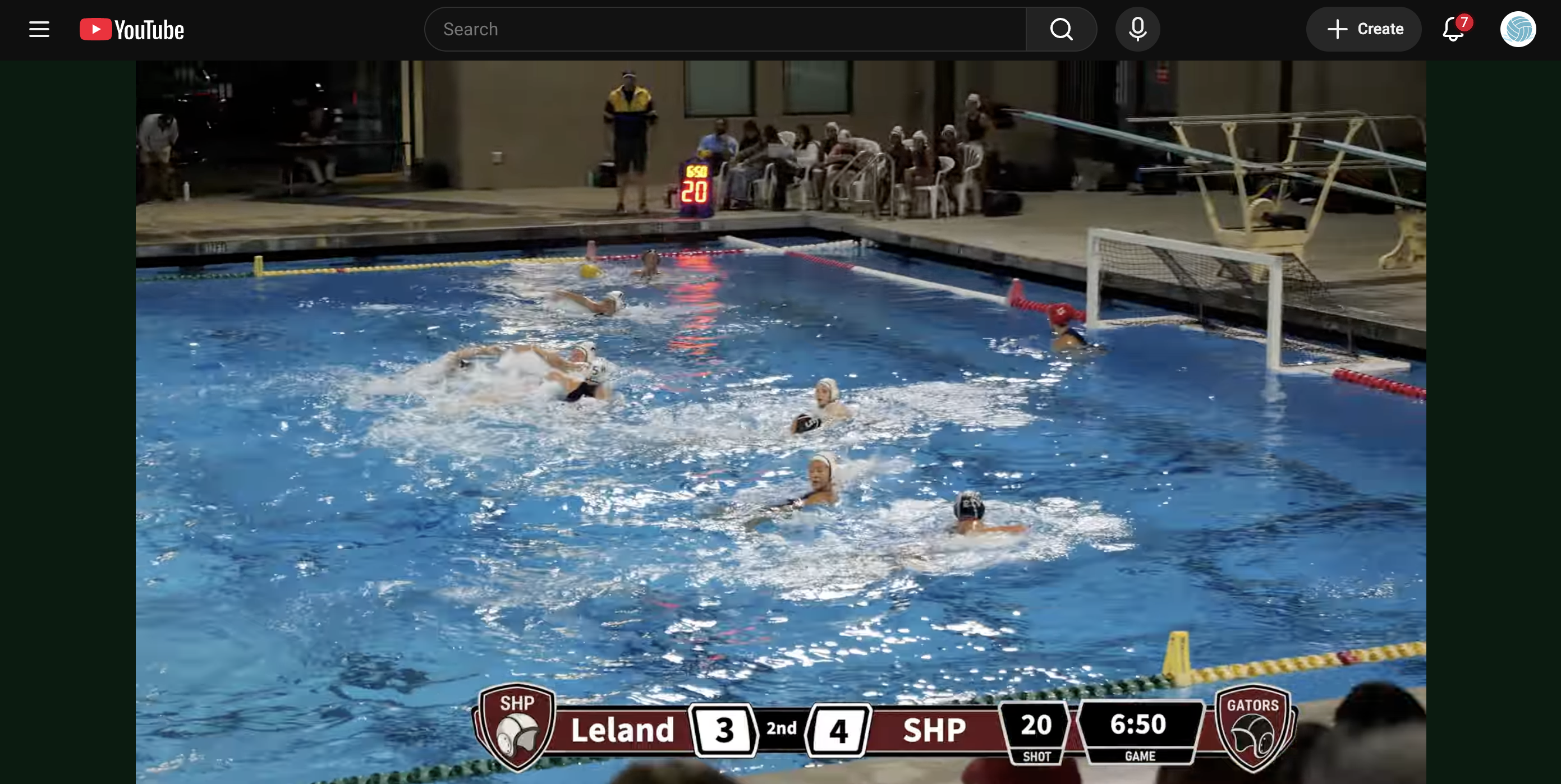
A real broadcast powered by Magic Key. The game clock and shot clock in the overlay match the display on deck: 6:50 and 20 seconds.
Connect a receiver, select the right scoreboard and send its decoded values to your broadcast graphics. The Bridge listens to the scoreboard; it does not control it.
Use a Bluetooth Magic Key or a supported USB receiver.
Discover supported clocks and explicitly select a source. Channel, PAN and source identity distinguish nearby scoreboards.
Write game clock, shot clock, light score, dark score and ordinal period to individual text files.
Keep the last scores and period. Choose blank, hold or a stale indicator for the clocks, with an adjustable timeout.
Delay decoded output to align the scoreboard with your camera feed. The preview continues to show incoming data.
Record structured JSON or JSON Lines, preserve raw captures, or replay a saved PCAP to test a setup away from the pool.
Power your Bluetooth receiver nearby, or connect a supported receiver by USB. Find it in the Bridge and connect.
Choose the discovered clock that matches the pool display. Check the clocks and scores before going live.
Enable individual OBS text files, choose an output folder and click Start Writing.
For each text source, enable Read from file and select the matching file. Style and position it in your own overlay.
Requires Magic Key and a compatible Colorado Time System wireless scoreboard. Support varies by model, installation and pool locations.
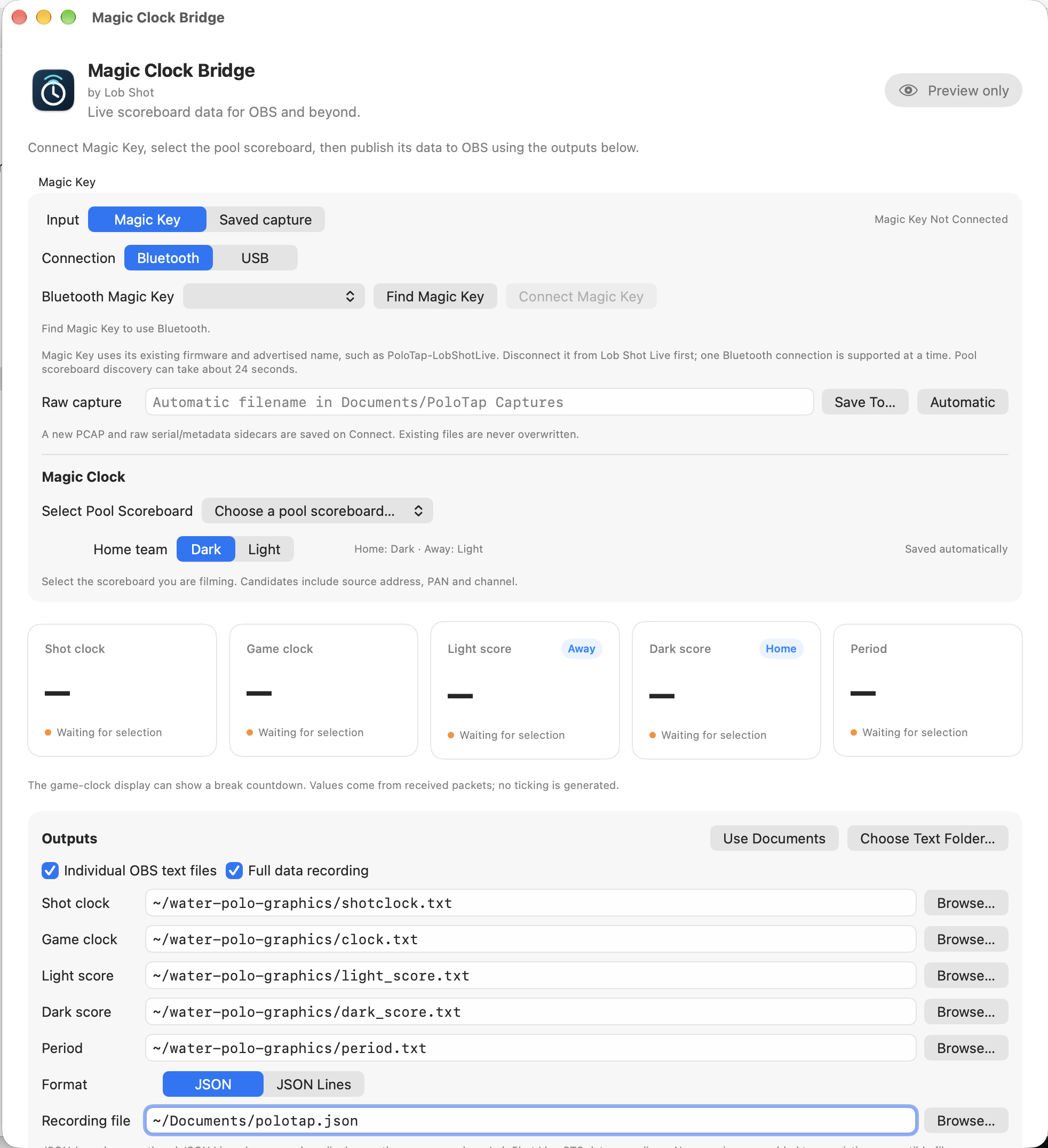
Receiver setup, scoreboard selection and output files in one window.
Choose Bluetooth or USB, or open a saved capture for a practice run.
Select the source and set whether the home team wears dark or light caps.
Set the five OBS text files, enable structured data recording, or use both.
Download this example capture to explore Magic Clock Bridge without a receiver or a live scoreboard nearby. It contains recorded data from November 14, 2026.
Download example capture ↧PCAP · 31.1 MB
In Magic Clock Bridge, choose Saved capture → Open Capture… and select the downloaded file.
Choose a source under Selected clock, then click Play. Try pausing or seeking through the recording.
Choose a separate test output folder and click Start Writing to send replayed values to OBS. Stop Writing clears the active text files.
Compatibility can change. Operation depends on the scoreboard model, configuration, installation, radio conditions and transmitted data. Changes to Colorado Time Systems hardware, firmware, software, wireless protocols or system configuration may reduce or eliminate compatibility, including at installations that previously worked. Continued compatibility is not guaranteed, and Lob Shot cannot guarantee that an update will restore it.
Scores and clocks are for broadcast and informational use only, not official timing, scoring, officiating or safety decisions. Data may be delayed, inaccurate, incomplete or unavailable. Check received values against the official display.
Use only with permission and where permitted by law and venue policies. The availability of a wireless signal does not establish permission to receive, use or redistribute its contents. Read the compatibility terms.
It supplies text and data for your graphics. Use OBS text sources with your own scoreboard layout; the Bridge does not stream video or render the Lob Shot Live scorebug.
No. The Mac Bridge works with OBS independently. Lob Shot Live is the separate iPhone option; both can use compatible Magic Key receivers.
Download the example capture to preview decoded fields and exercise file output. Live reception requires a compatible wireless scoreboard in range.
Scores and period retain their last received values for the selected clock. Game and shot clocks follow your chosen blank, hold or show-stale policy. The Bridge does not invent a locally ticking clock.
Use one Bluetooth host at a time. Disconnect it from Lob Shot Live before connecting the Bridge.
Download the Mac app, connect your receiver and bring live scoreboard data into your broadcast.
Download Magic Clock Bridge ↗Confirm compatibility with your installation before relying on this product. Current compatibility does not guarantee future compatibility. Support for a particular system may be discontinued if changes make integration impractical.